
Reverse engineering an existing propeller: modelling its performance in Heliciel
Reverse engineering an existing propeller means describing in Heliciel a propeller whose geometry you know (radius, chords, profiles, pitch angles), so as to model it and calculate its performance. You are not trying to optimize the blade: you reproduce the one you have in your hands, then test its performance at several rotation speeds and fluid speeds.
In this page:
- The three design modes of Heliciel
- Reverse engineering mode: what it allows
- Example: modelling an existing boat propeller
- Testing the performance of the modelled propeller
1: The three design modes of Heliciel
Heliciel offers several design modes, suited to the different propeller studies.
- The default mode creates an optimum propeller from the travel speed you enter. The rotation speed can then be imposed or calculated. Building the propeller blade with the "optimum twist"
 then adapts the twist so that the profiles give their maximum lift-to-drag ratio, taking the calculated induced velocities into account.
 - An "off-design" performance calculation
 is then available. It evaluates the performance of the propeller when it operates away from its design operating point. The design phases follow from the specification: the page on the design phases of a propeller optimized for a given operating point describes them.
 - The reverse engineering mode is, in fact, an "off-design" performance calculation. It lets you model and quickly calculate the performance of an existing propeller, whose geometry you impose yourself.
In the default mode, Heliciel calculates the twist. In reverse engineering, you impose the pitch angles, the profiles, the chords and the radii.
2: Reverse engineering mode: what it allows
Reverse engineering mode lets you enter the pitch angle of each profile directly (the angle between the chord and the plane of rotation), select the blade profiles, and define the chord and the radius of each element.
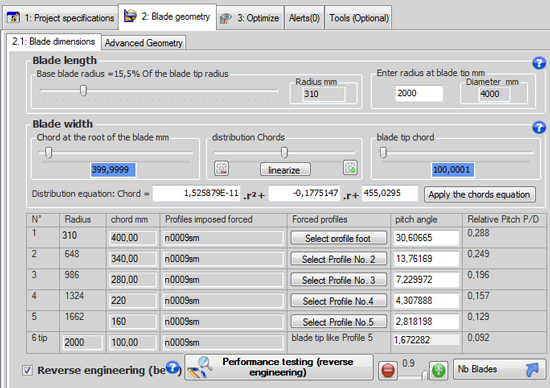
The blade geometry tab in reverse engineering mode: a table gives, for each element, the radius, the chord, the imposed profile and the pitch angle you enter.
This mode is therefore used to test the performance of a propeller, but also to reproduce it. You can then change some parameters to create a new propeller derived from the model. When you enter the pitch angles and the geometry measured on your propeller, the 3D model of the propeller is built: you can then edit the IGES or SolidWorks files of your propeller prototype.
3: Example: modelling an existing boat propeller
We first choose the default project closest to our case. For this example, a boat propulsion propeller: in the File menu, New project (from a model), then Water propeller (thrust generation).
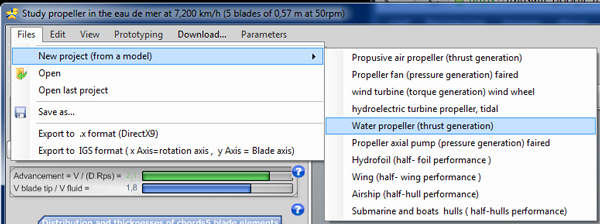
The starting model: the propulsive propeller in water.
Then, in the Optimize tab, we set the number of blades to match our existing propeller.
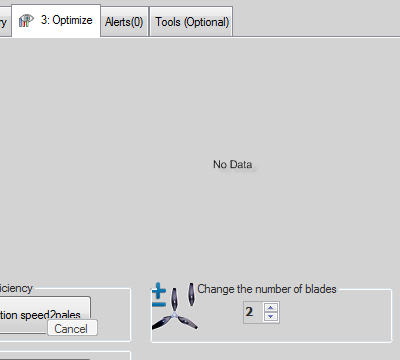
Setting the number of blades, at the bottom right of the Optimize tab.
In the Blade geometry tab, we tick Reverse engineering. Some functions then become unavailable, such as the choice of the profile law or of the profile thickness: the profiles are selected and forced by hand.
As in the other modes, the chords and the blade length are set in the upper part of the Blade dimensions tab. We enter the radius at the blade tip measured on the propeller, then adjust the slider to obtain the radius at the blade root. Next we adjust the chords at the tip and at the root, then use the distribution slider and the camber buttons so that the intermediate chords match our propeller. Finally, we move the blade root slider so that it matches the hub radius of the existing propeller.
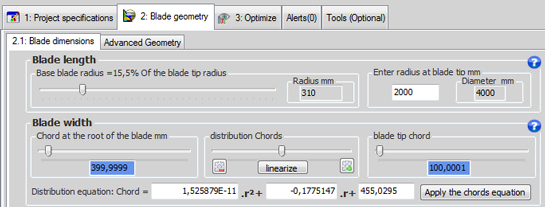
The upper part: blade root radius, blade tip radius (here 2,000 mm, for a diameter of 4,000 mm) and chords.
You can now select the profile of each element that describes your blade. The Select profile buttons select the corresponding element and display your profile database.
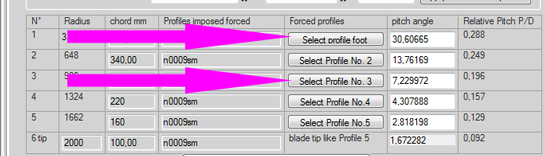
The input table: one row per element, from the blade foot to the blade tip.
Select the profile you want in the database, then click Apply as forced base profile of the element. The page on using the aerodynamic and hydrodynamic profile database describes this window.
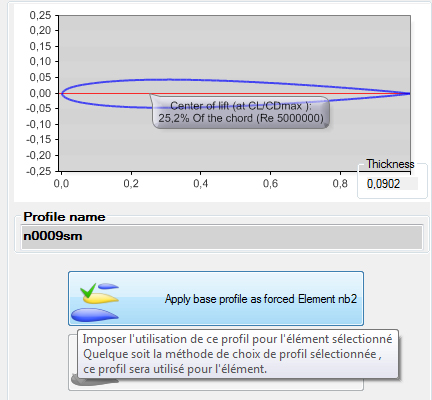
The selected profile is applied to the chosen element with the first button.
The pitch angle input column is filled by default with the optimum pitch angles calculated during the last rebuild of the optimum twist. It is in this column that you impose the pitch angles measured on your existing propeller. Reverse engineering mode therefore lets you combine methods: you can first calculate the optimum twist in normal mode, then switch to reverse engineering to change the pitch angle of a few elements only.
4: Testing the performance of the modelled propeller
When the blade definition is complete, click the performance testing button (reverse engineering). Heliciel rebuilds the 3D model at the defined pitch angles, then recalculates the performance of your propeller. You can then change the rotation speed and the fluid speed, and run the test again to learn the performance at other operating points.
To go further, we can describe the blade more finely with the page on choosing the blade profile, or plot the results over a whole range of speeds with the multiple operating point analysis.
 Global site map
 Mecaflux
 Tutorials Mecaflux Pro3D
 Tutorials Heliciel
 Tutorials Heliciel PRO CFD
 Mecaflux Store
 Compare software functions
 Quotes, Orders, Payment Methods
 project technical studies